Accounting
Getting started
Sign in, find your way around the overview and use the header tools.
The accounting app works on one client company at a time. This guide uses a demo client, Eversion Demo, a fictional GmbH on the standard German chart of accounts (SKR03) with monthly VAT, inside the firm "Marsstein GmbH". All screenshots show this demo data.
Sign in
Open the app address your administrator gave you. Account, firm and role basics are explained once in Core.
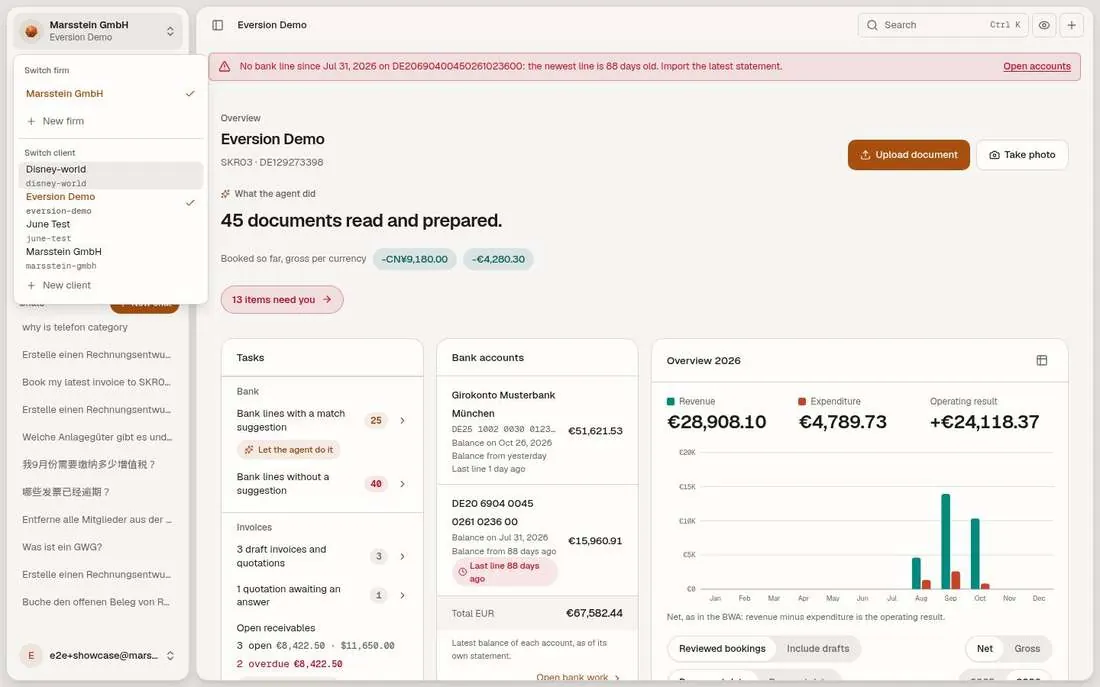
Pick the client company in the switcher at the top left. Use the demo client Eversion Demo to follow this guide.
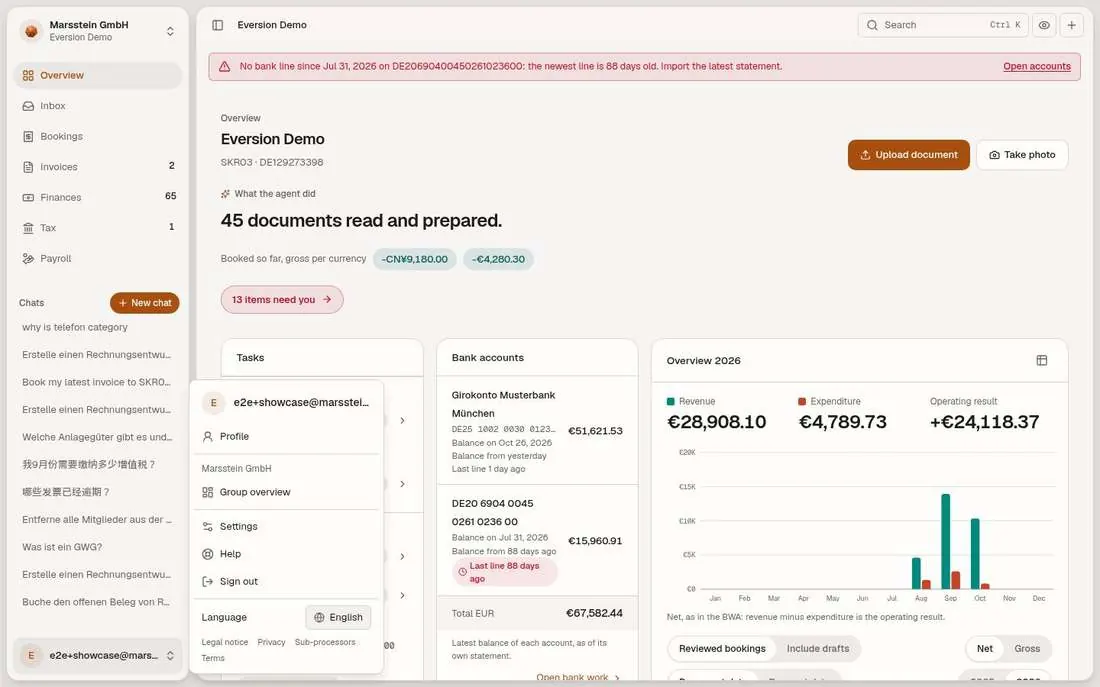
Switch the language in the profile menu: German, English and Chinese are available, and the agent answers in your language.
Client overview (dashboard)
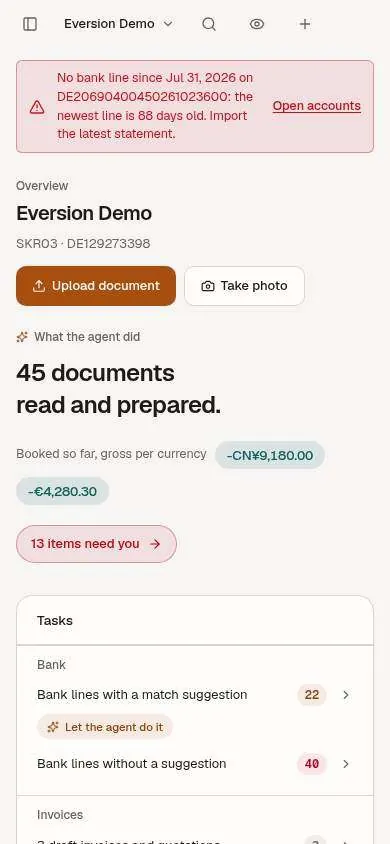
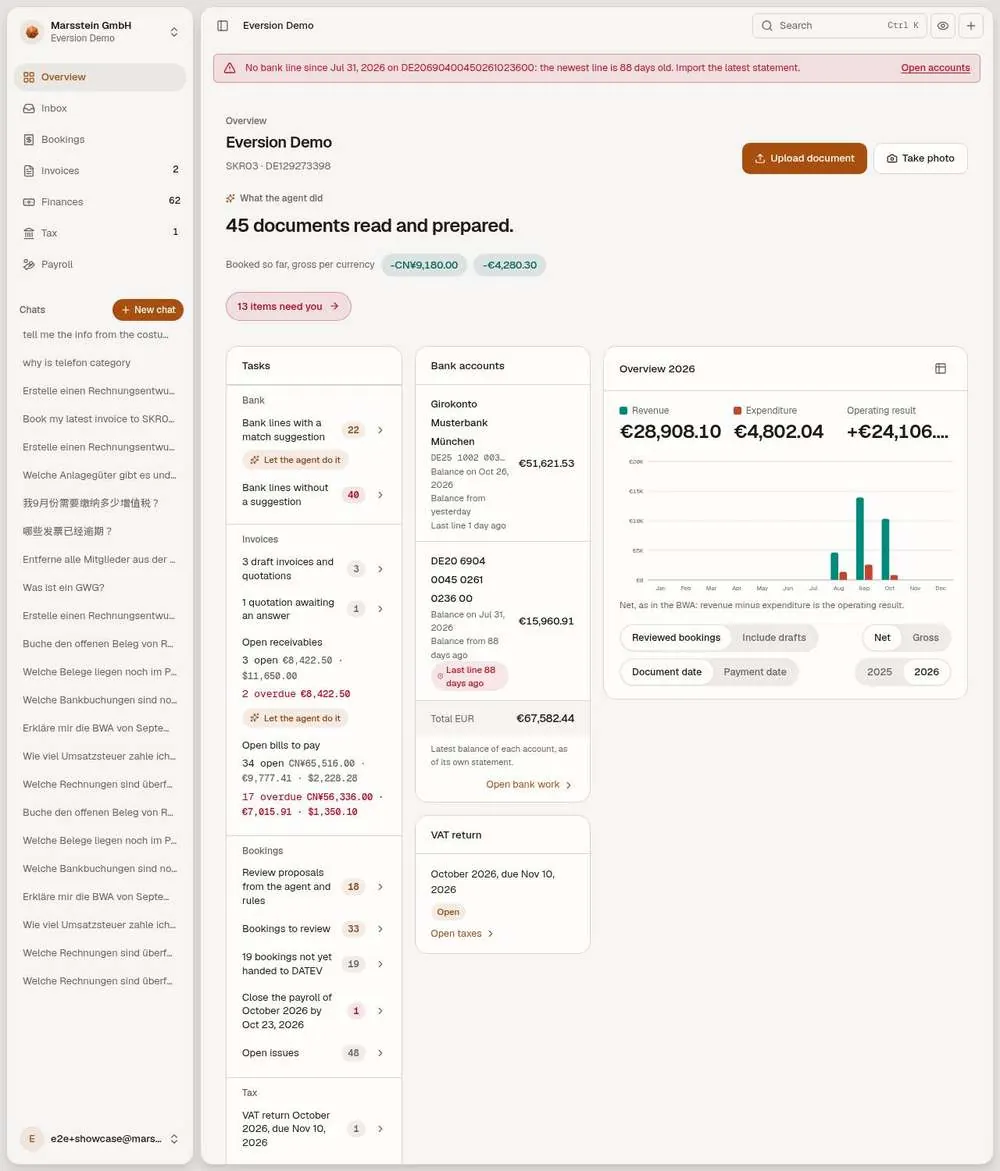
A tasks column (bank lines without a suggestion, draft invoices and quotations, open receivables and bills to pay, bookings to review, VAT and wage tax reminders), the bank accounts with their balance, the VAT return status and a chart of revenue, expenditure and operating result for 2026. Buttons Upload document and Take photo. A red banner appears when a bank account has no recent statement.
In short
Try it
Click a task to open the list behind it.
Switch Net and Gross, or Reviewed bookings and Include drafts, and watch the totals change.
Hover a month in the chart to see revenue, expenditure and result.
Good to know
- The chart is net, like the BWA: revenue minus expenditure is the operating result.
- Documents that stay unbooked for more than 10 days are counted as a task and in the month-end report.
Group overview and client list (firm level)
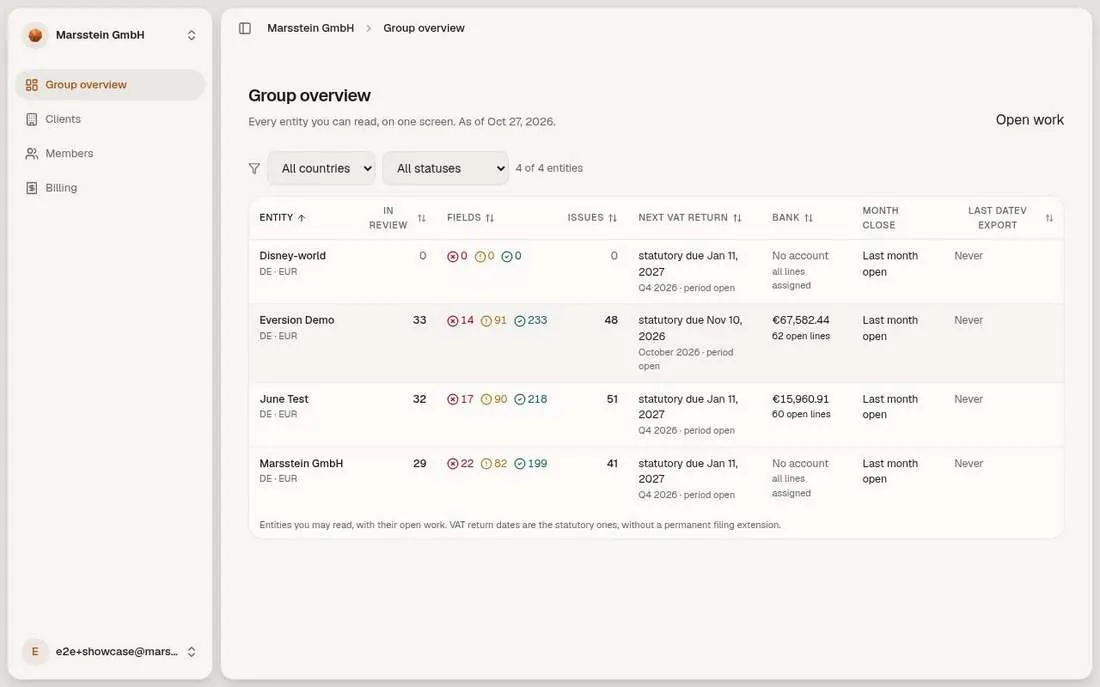
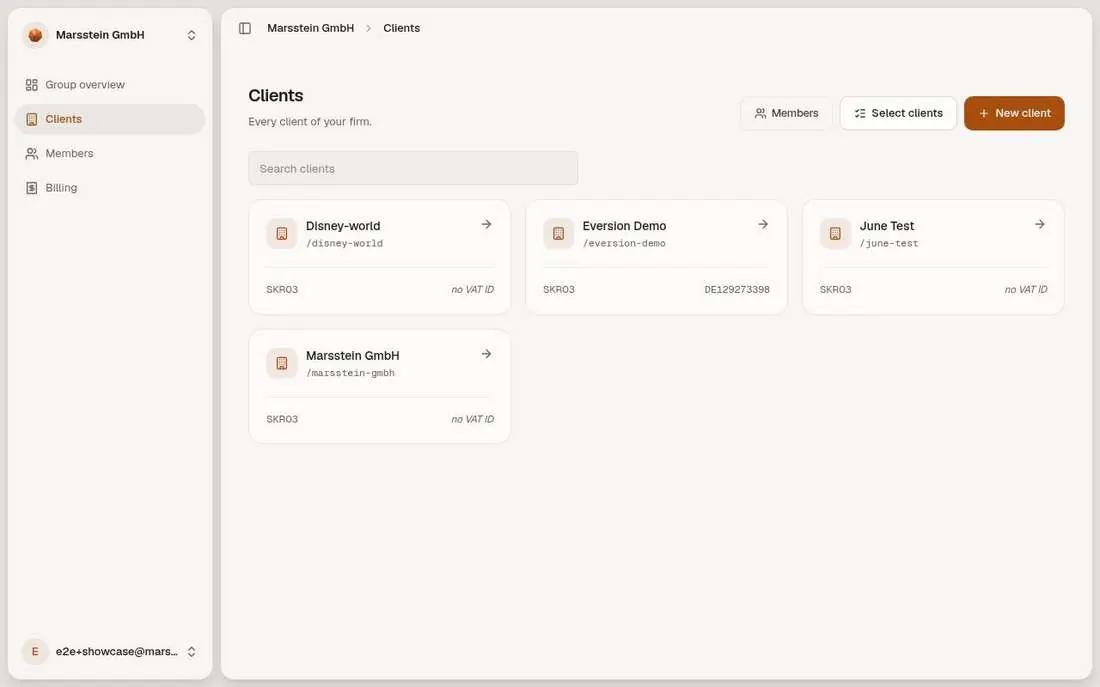
One table with every entity the signed-in person may read: items in review, field checks (red, amber, green), open issues, next VAT return date, bank status, month close and last DATEV export. Filters for country and status. The client list has search, Select clients, New client.
In short
Try it
Sort by Issues to find the entity with the most open findings.
Open a client from the list.
Good to know
- Group structure with a parent company view is planned, not built.
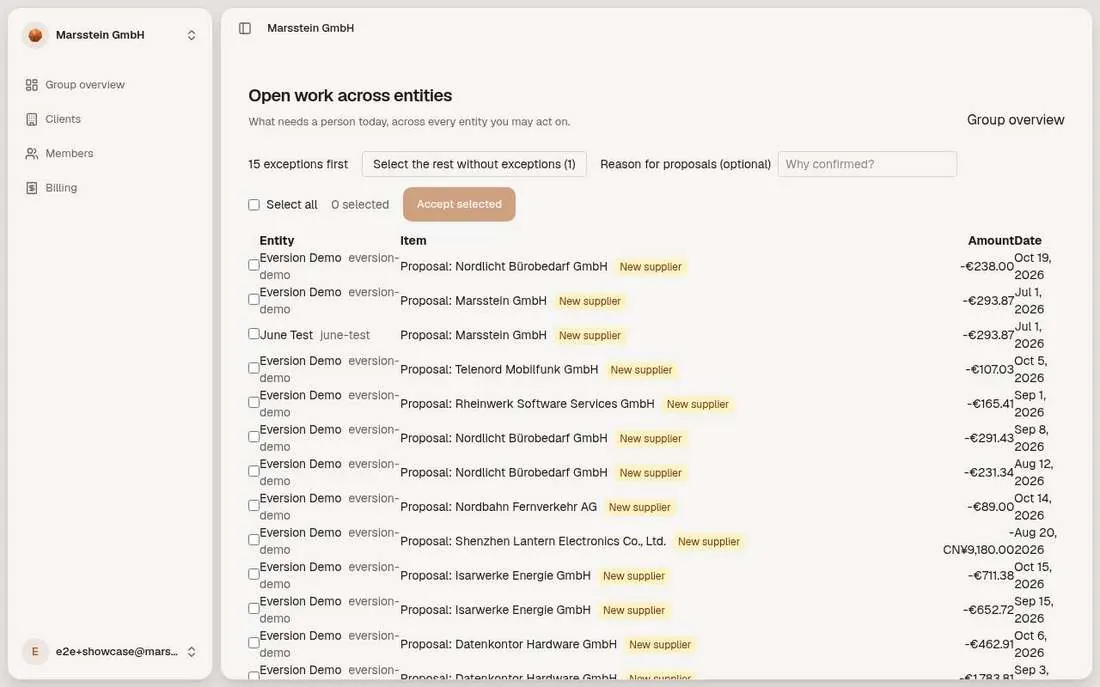
Open work across entities (bulk accept)
A list of proposals from the agent and from rules, across every entity, with a reason box and Accept selected. A heading such as '15 exceptions first' puts the rows that need a human look on top, and 'Select the rest without exceptions' picks the routine ones.
In short
Try it
Read the first rows: new supplier proposals and booking changes.
Do not press Accept selected in a customer demo unless you mean it (it writes).
Header tools: search, private mode, quick create, client switcher
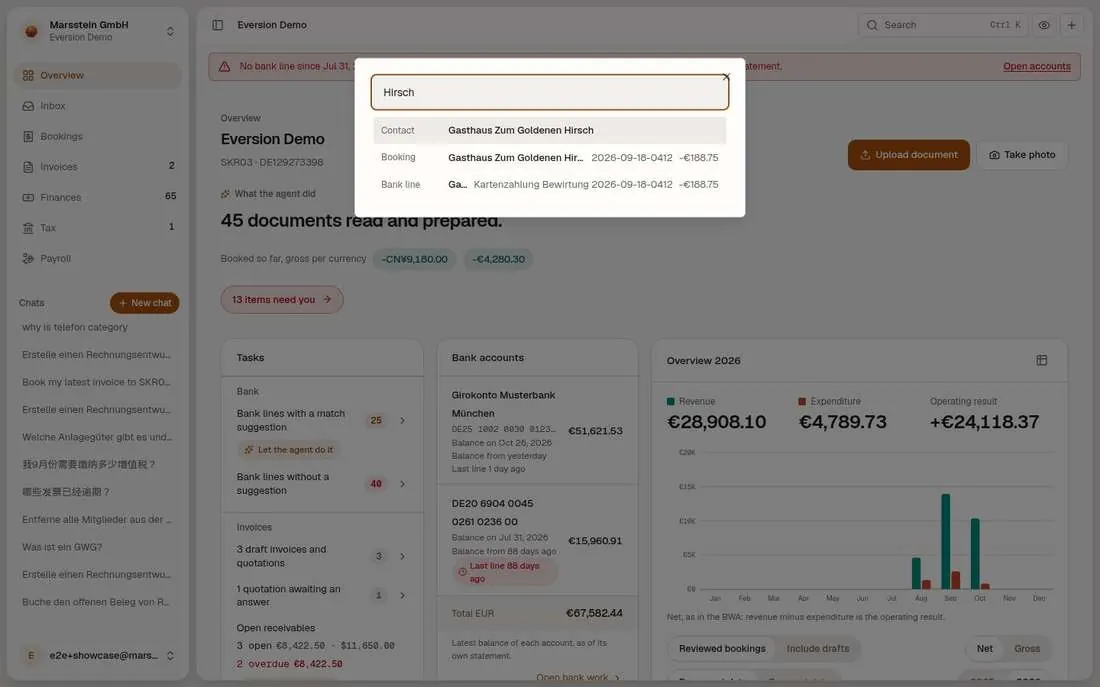
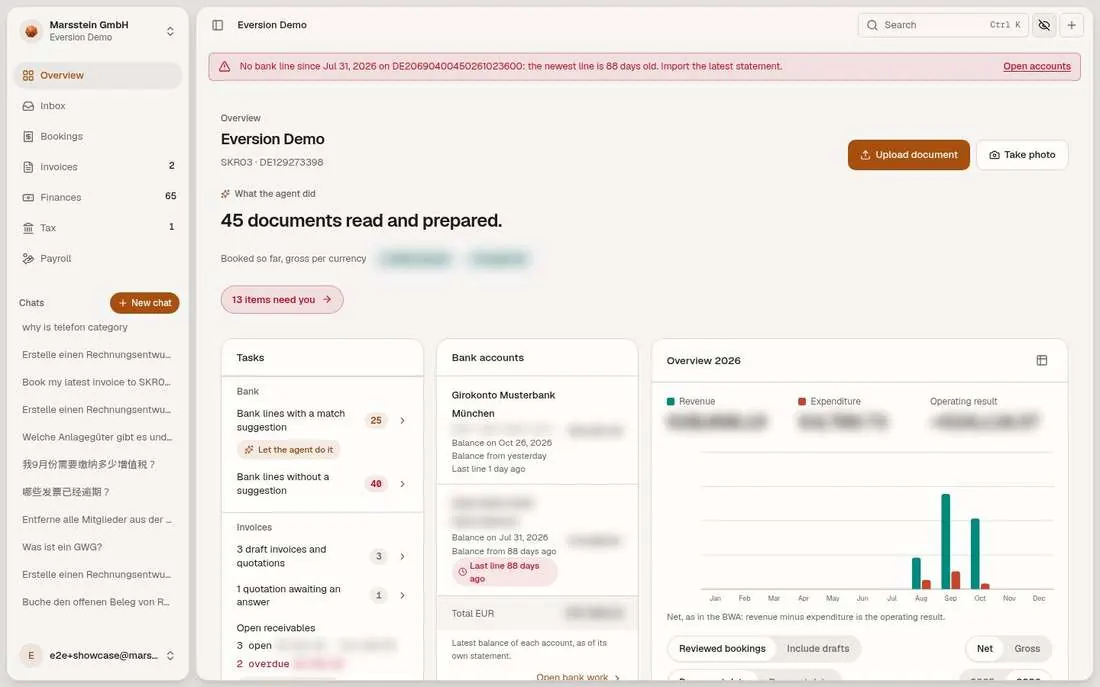
Search box (Ctrl+K) that searches one client: contacts, issued documents, bookings, articles, bank lines. The eye button toggles private mode. The plus button opens Create new: Invoice, Quotation, Order confirmation, Delivery note, Contact. The top left switcher lists the firm and every client, with New firm and New client.
In short
Try it
Press Ctrl+K, type Hirsch.
Click the eye icon, look at the overview, click it again.
Open the switcher and pick another client.
Good to know
- Private mode is a display setting stored in the browser. Copying a blurred cell or exporting still gives the real number.
- The search only offers kinds of records the signed-in role may read.
Languages and your profile
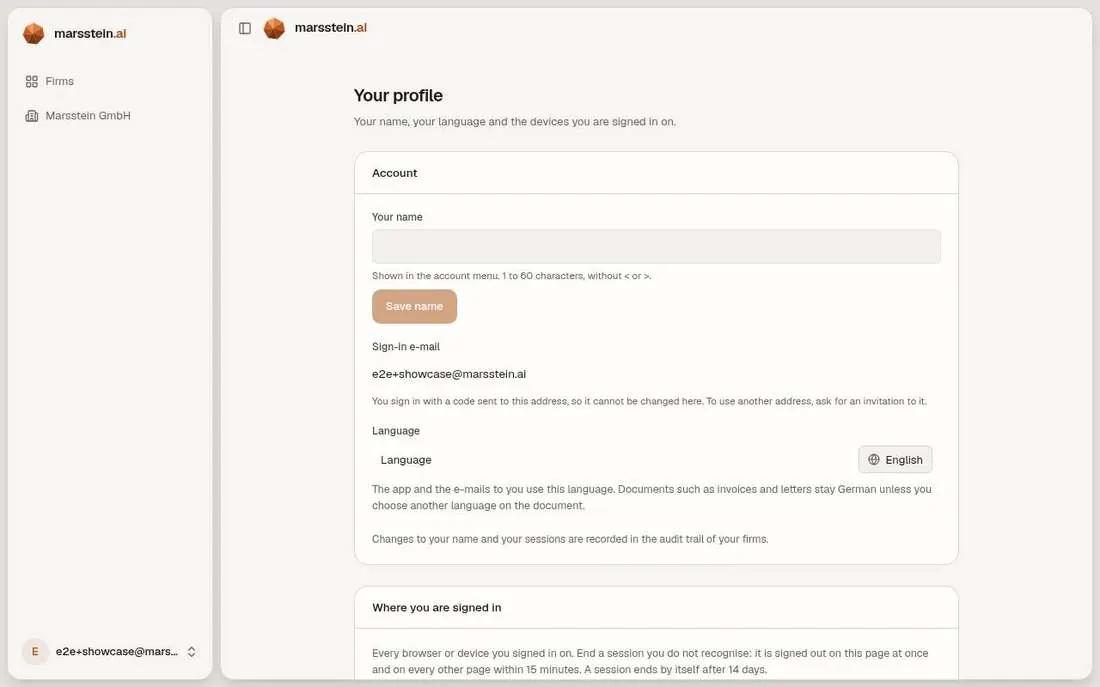
The account menu: Profile, Group overview, Settings, Help, Sign out, Language and the legal links. The profile page: name, sign-in e-mail, language, and a list of devices you are signed in on, each with Sign out here.
In short
Try it
Open any card in zh-CN and de-DE.
Good to know
Phone width
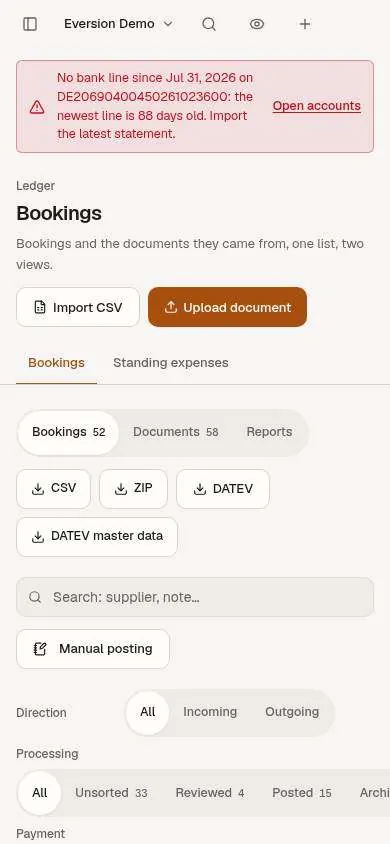
At phone width the sidebar becomes a slide-in menu and the pages stack in one column. The Take photo button is for capturing a receipt with the phone camera.
In short
Try it
Narrow the browser window to about 390 px.