Accounting
Bookings and journal
The ledger, the booking panel, splitting, manual postings, storno, standing expenses and opening balances.
Bookings: the ledger and its exports
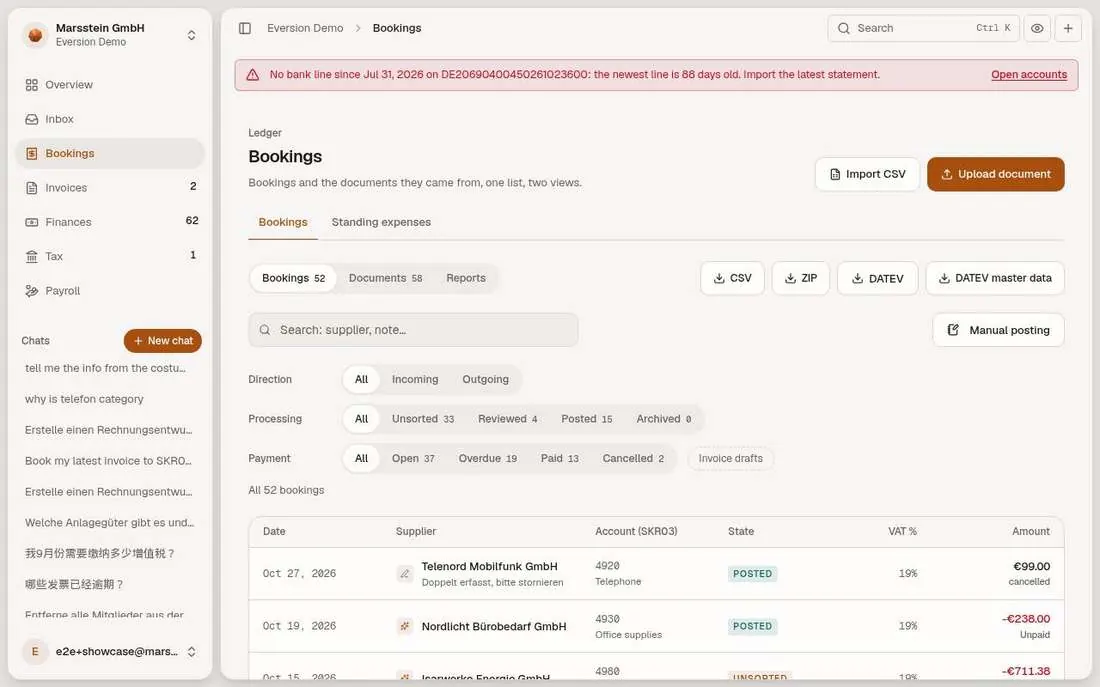
Tabs Bookings, Documents and Reports, and a separate Standing expenses tab. Filters for Direction, Processing (Unsorted, Reviewed, Posted, Archived) and Payment (Open, Overdue, Paid, Cancelled). Rows show source (AI extraction or Manual), SKR03 account, state, VAT rate, amount and payment status. Foreign-currency rows show the rate used, for example 1 USD = 0.887 EUR. Buttons CSV, ZIP, DATEV, DATEV master data, Manual posting, Import CSV, Upload document.
In short
Try it
Filter Payment: Overdue.
Hover the foreign-currency rows.
Look at the export buttons. The DATEV file needs a fresh e-mail code.
Good to know
- The CSV comes in the language of the app, with amounts and dates that Excel reads as numbers.
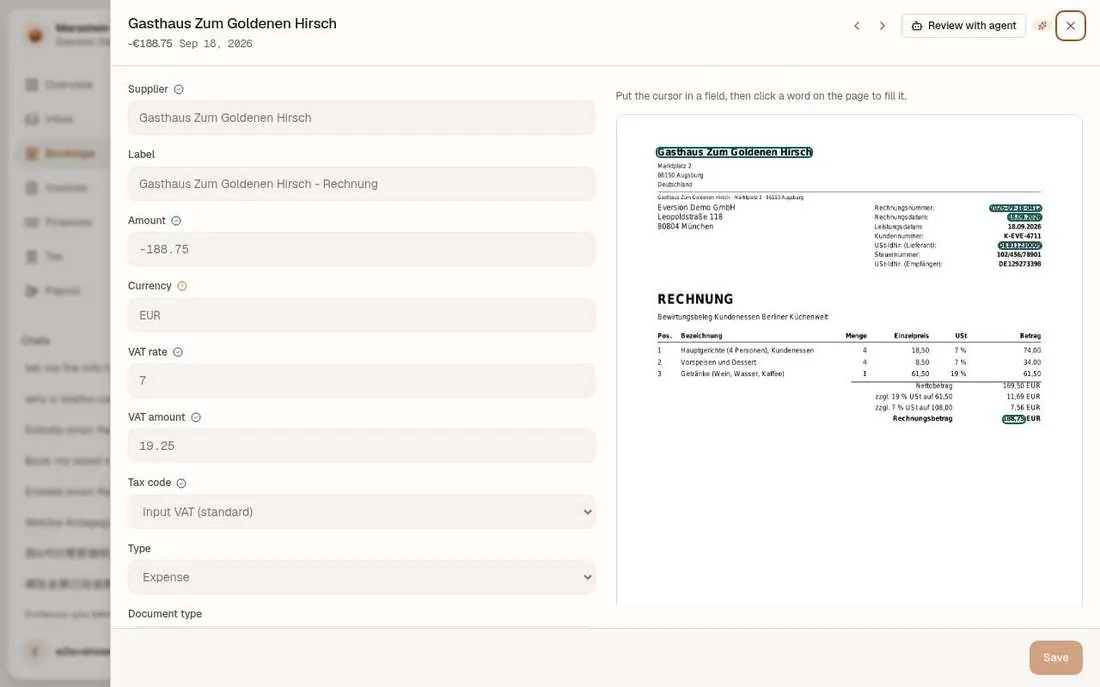
Booking panel with evidence on the page image
A side panel with the supplier, label, amount, currency, VAT rate and amount, tax code, type, document type, dates, invoice number, VAT ID and category on the left, and the page image on the right with the found values highlighted. The hint reads 'Put the cursor in a field, then click a word on the page to fill it.' The receipt itself prints food at 7 % and drinks at 19 %.
In short
Try it
Click into the Amount field and see where it is highlighted on the page.
Use the arrows at the top to move to the next booking.
Good to know
- Restaurant bills with mixed rates: breakdown per rate required, § 14 Abs. 4 UStG.
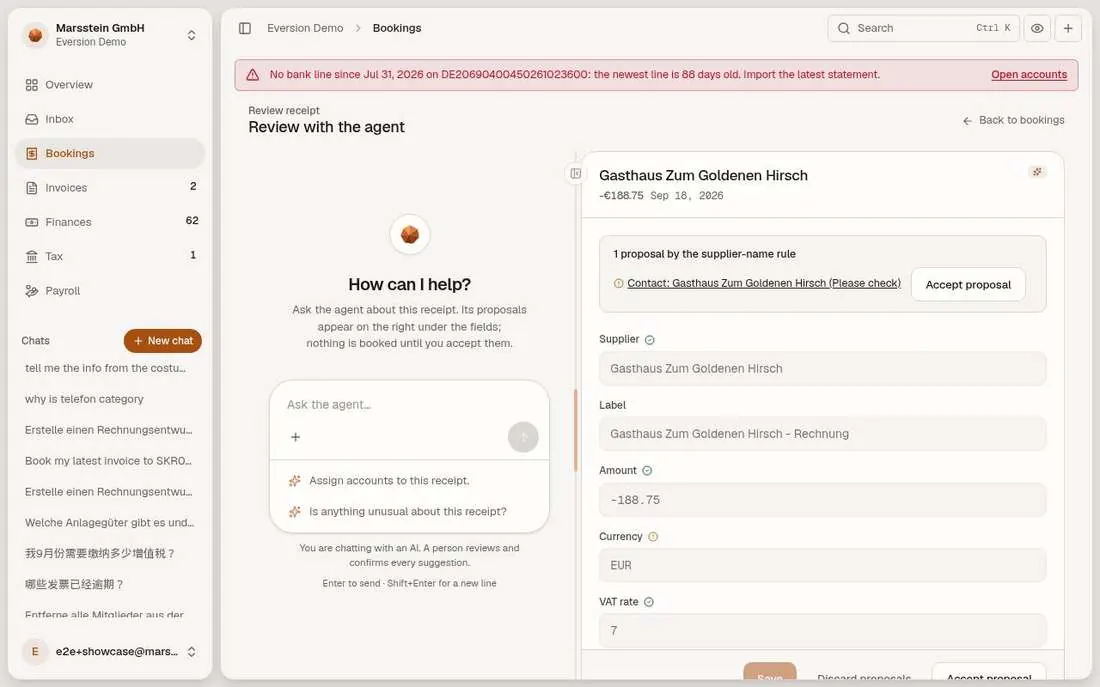
Review a receipt with the agent
Left: a small chat about this receipt with two suggested questions ('Assign accounts to this receipt', 'Is anything unusual about this receipt?'). Right: the receipt with a proposal card ('1 proposal by the supplier-name rule') and the buttons Save, Discard proposals, Accept proposal.
In short
Try it
Read the proposal card.
Accepting writes data, so skip it in a customer demo.
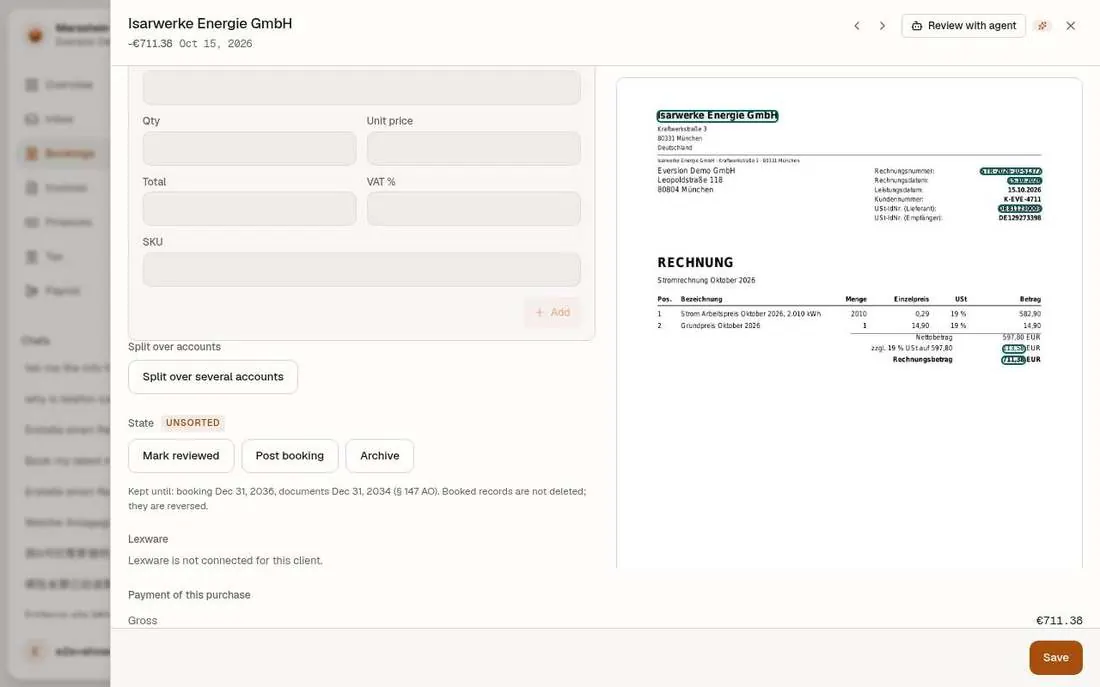
Split one document over several accounts
On a booking in state UNSORTED the panel shows the button 'Split over several accounts' and, below it, Mark reviewed, Post booking and Archive, plus the retention text ('Kept until: booking Dec 31, 2036, documents Dec 31, 2034').
In short
Try it
Click the split button to open the editor, then close the panel without saving.
Good to know
- If this booking has been posted since, pick any other booking with state UNSORTED from the list.
- Retention: 10 years for bookings, 8 years for the originals, § 147 AO.
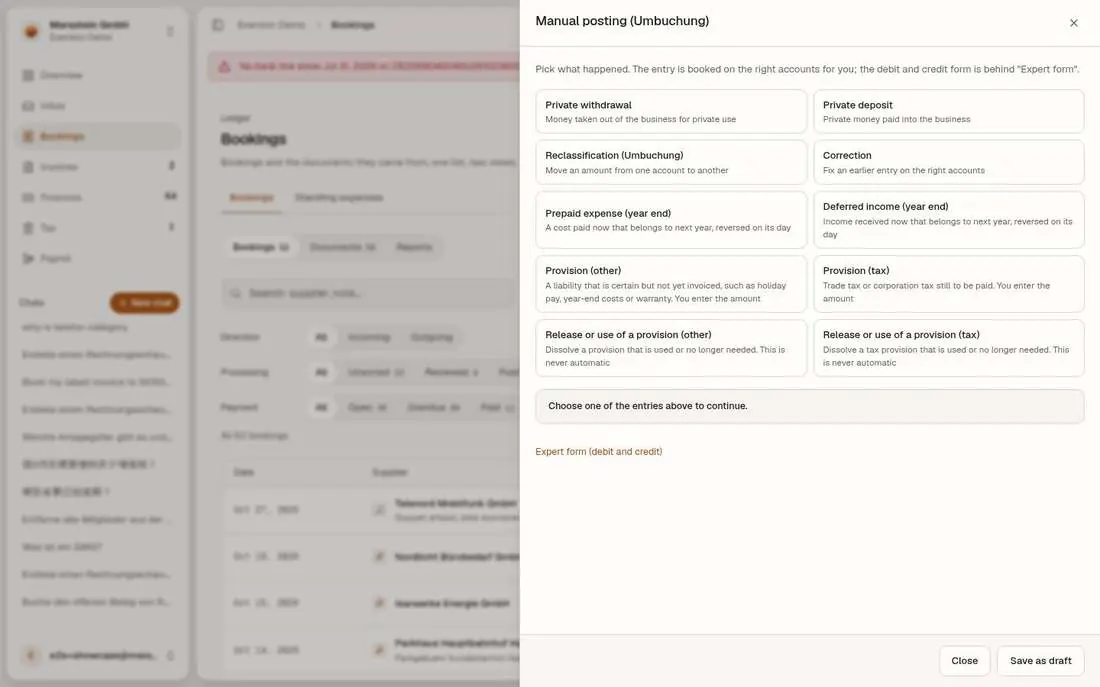
Manual posting from templates
A side panel 'Manual posting (Umbuchung)': Private withdrawal, Private deposit, Reclassification, Correction, Prepaid expense (year end), Deferred income (year end), Provision (other), Provision (tax), and the release of each provision. An Expert form (debit and credit) is one click away.
In short
Try it
Open the panel and read the templates. Close it. Saving writes.
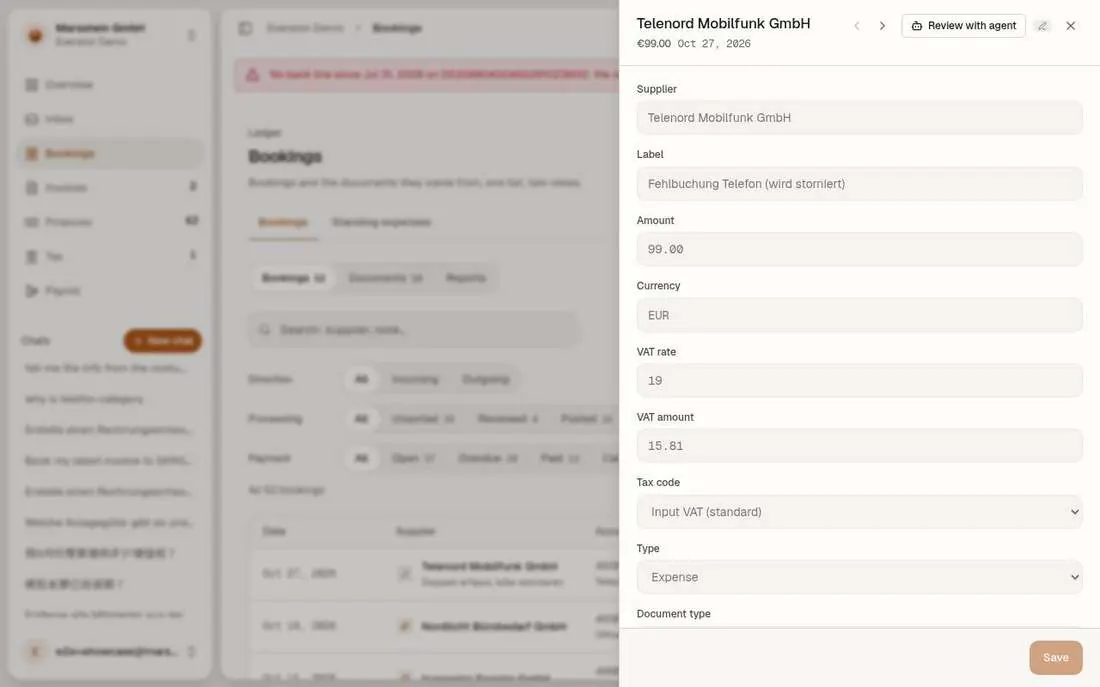
Storno: correcting a posted mistake
Two Telenord Mobilfunk bookings of 99.00 EUR: the original, marked Cancelled, and its reversal ('Fehlbuchung Telefon (wird storniert)') with the opposite sign.
In short
Try it
Find the pair in the Bookings list: the Cancelled filter shows the original.
Good to know
- Principle: undoing a posting is itself a posting (GoBD).
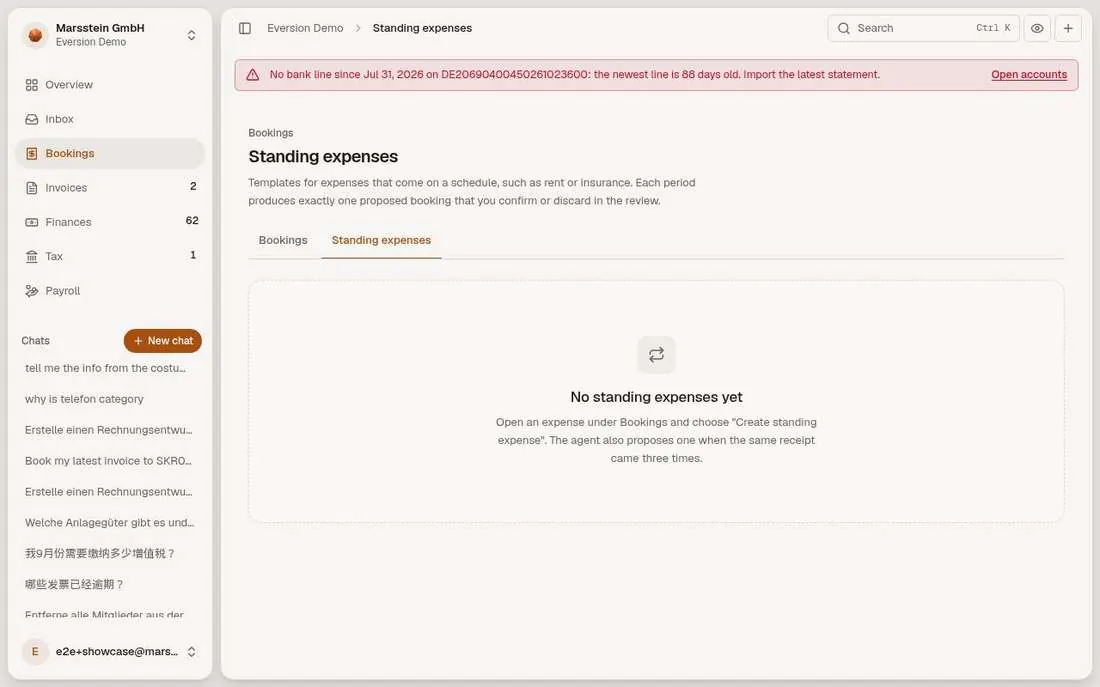
Standing expenses (empty)
Empty in the demo
A page 'Standing expenses' with the text 'No standing expenses yet. Open an expense under Bookings and choose Create standing expense.'
In short
Try it
Nothing to click for this client.
Journal (empty, switched off by default)
Empty in the demo
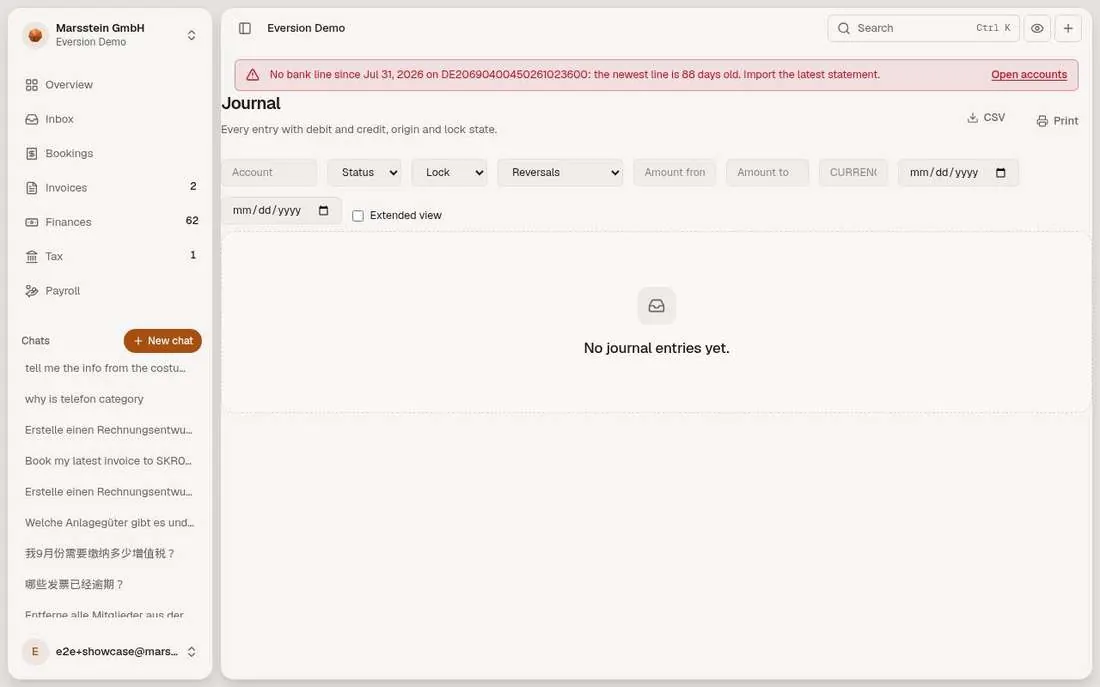
A journal screen with filters (account, status, lock, reversals, amounts, currency, dates), CSV and Print, and the text 'No journal entries yet.'
In short
Try it
Nothing to click. Explain the switch if asked.
Good to know
- Switch: the client's journal_mode (off, shadow, journal), default off.
Import helpers: bank file mapping and DATEV read-back (empty)
Empty in the demo
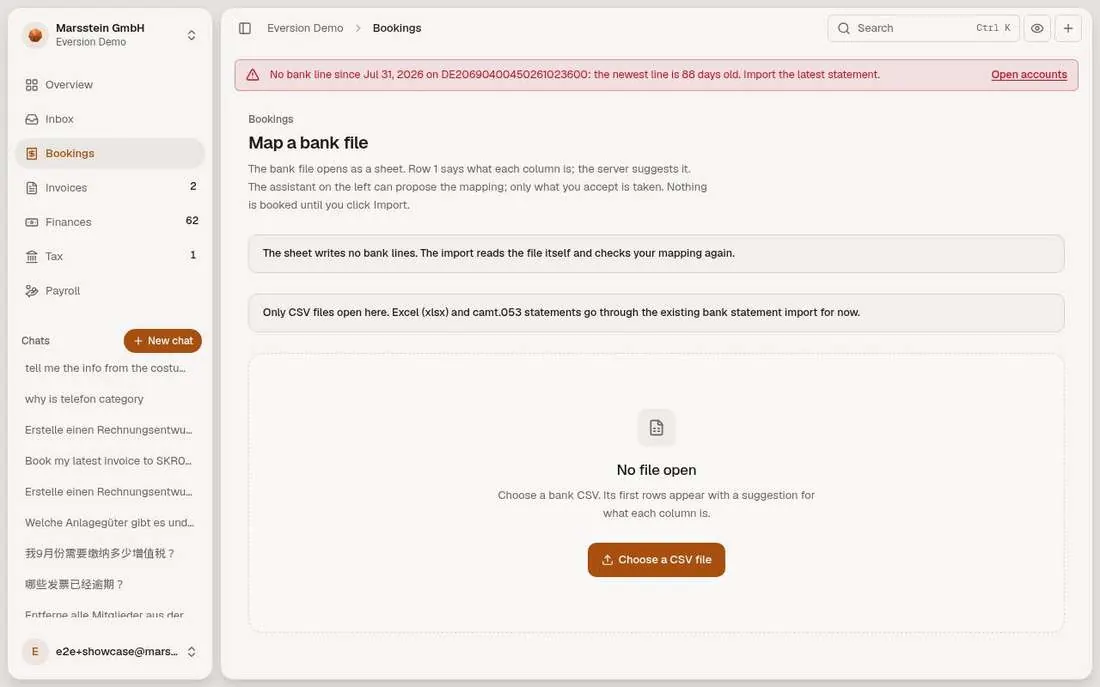
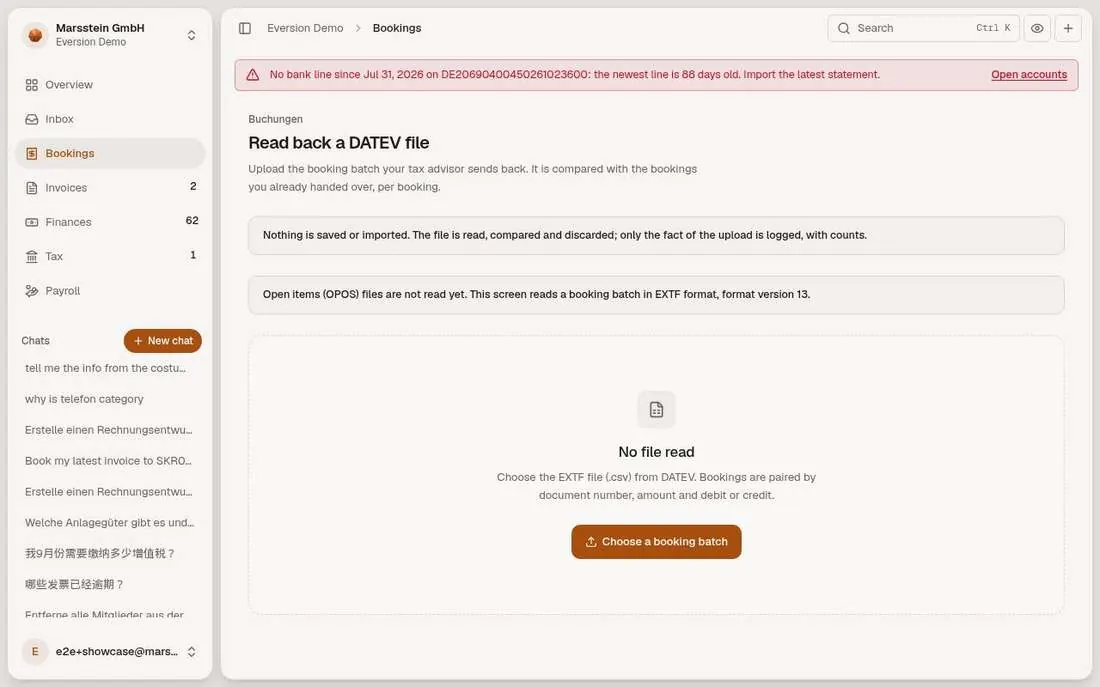
Two empty pages. The first maps the columns of a bank CSV in a sheet. The second reads back an EXTF booking batch from DATEV and compares it with what was handed over.
In short
Good to know
- Learning from the corrections is partial, per the docs.
Opening balances (empty)
Empty in the demo
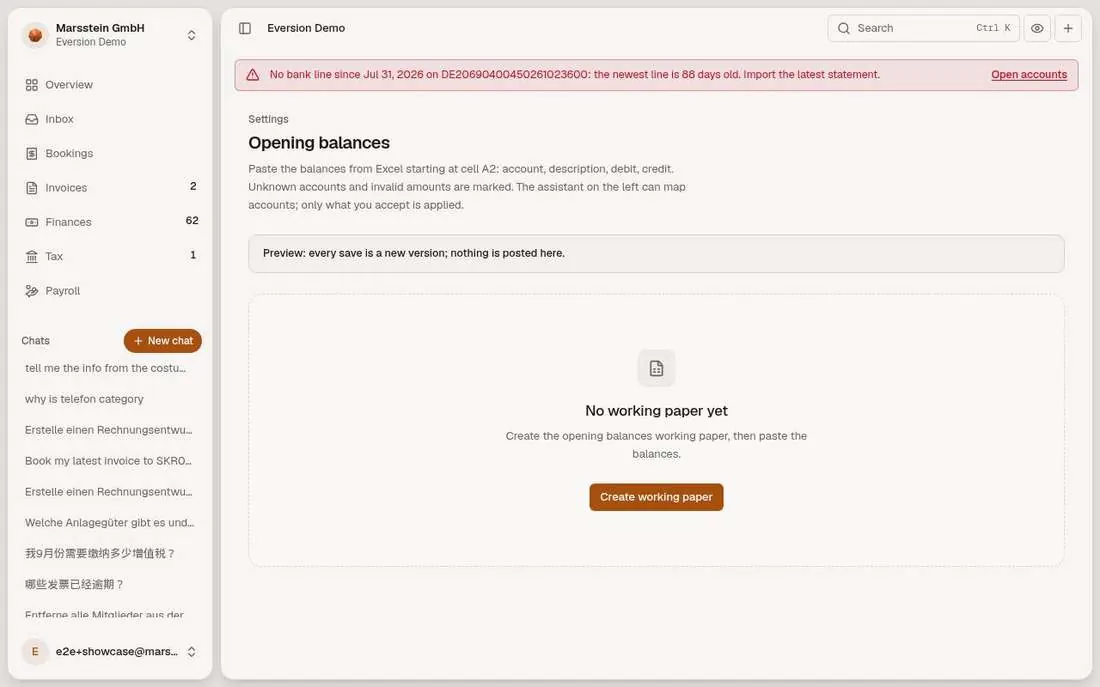
Page 'Opening balances' with the text 'No working paper yet' and the button Create working paper.
In short
Good to know
- Opening balances by CSV also exist through the migration wizard, per the docs.